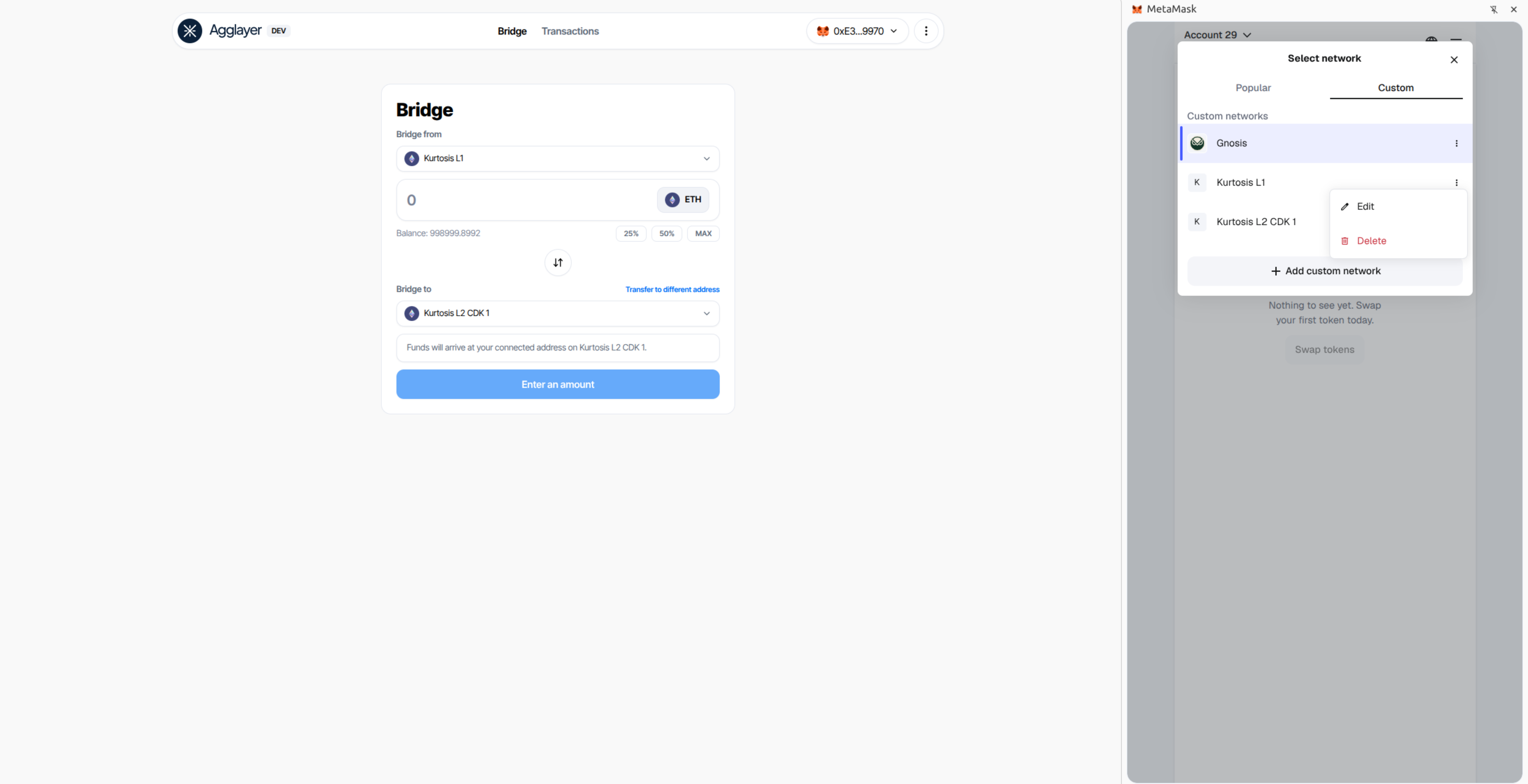
Bridge UI
Introduction
This configuration deploys the default CDK OP Reth setup enhanced with the bridge hub API and its dedicated UI, called Agglayer dev UI, providing a user-friendly browser interface for bridging assets between L1 and L2.
What's Deployed?
- L1 Ethereum blockchain (lighthouse/geth).
- Agglayer stack (contracts, agglayer service and mock prover).
- L2 Optimism blockchain (op-reth/op-node) enhanced with AggKit for seamless Agglayer connectivity.
- zkEVM bridge to facilitate asset bridging between L1 and L2 chains.
- Additional services:
- Bridge Hub API: indexes bridge and claim transactions
- Agglayer Dev UI: for browser-based bridging
Use Cases
- Development and testing of bridge functionality
- Easy asset transfers between L1 and L2 without CLI tools
- Demonstrating bridge capabilities to stakeholders
Deployment
args:
  additional_services:
    - bridge_ui
To deploy this environment:
kurtosis run --enclave cdk --args-file params.yml .
After deployment, retrieve the server url:
kurtosis port print pos agglayer-dev-ui-proxy-001 http
Open the printed URL in your browser to access the interface and start bridging assets between L1 and L2.
How to Bridge
The following example demonstrates bridging assets from L1 to L2. The process for bridging from L2 to L1 follows the same steps.
If you've redeployed the environment, MetaMask may have cached outdated RPC URLs. Delete the old network configurations and add the new ones before proceeding.
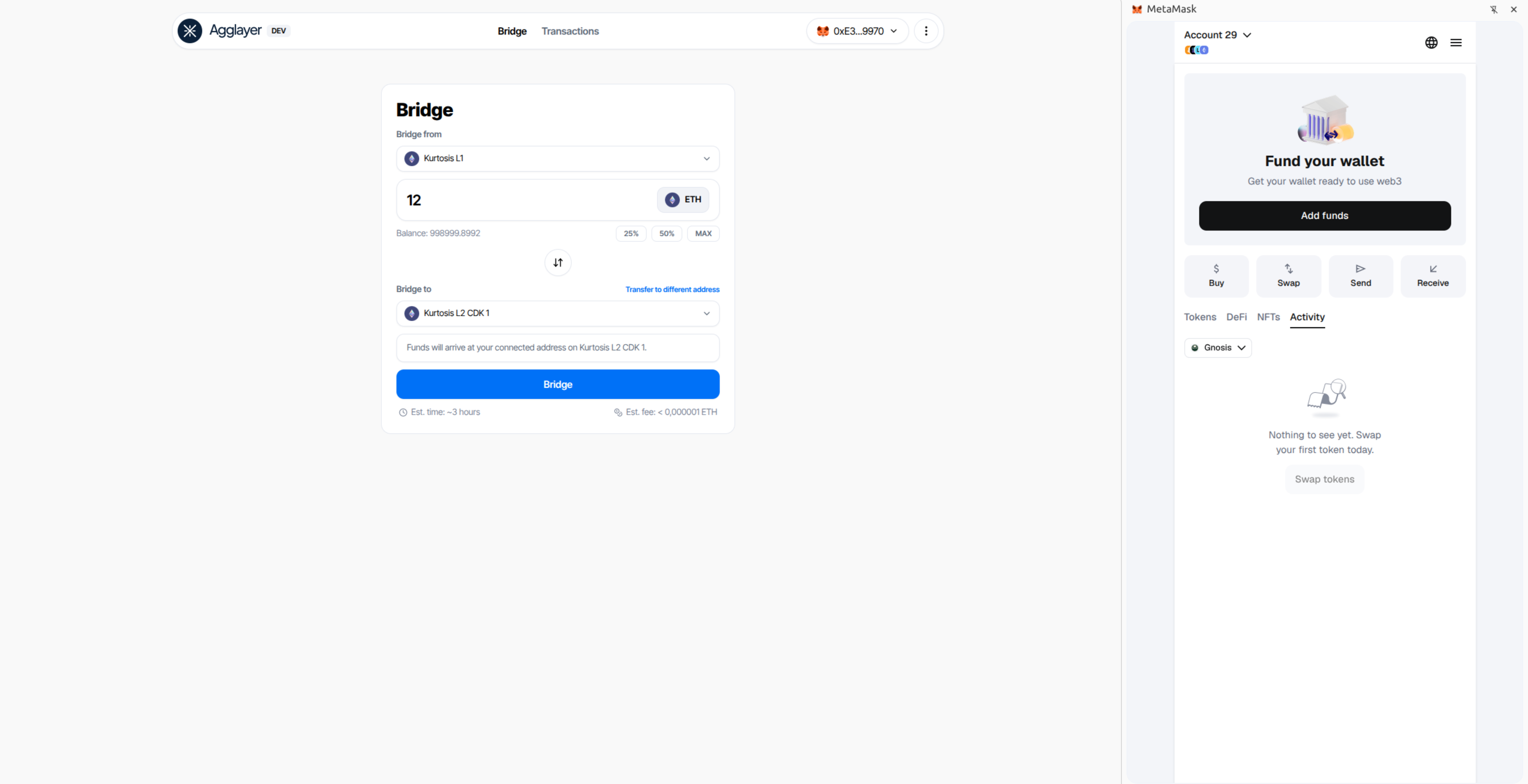
Step 1: Initiate the bridge
- Select the "Kurtosis L1" network
- Enter the amount of ether to bridge
- Click the "Bridge" button
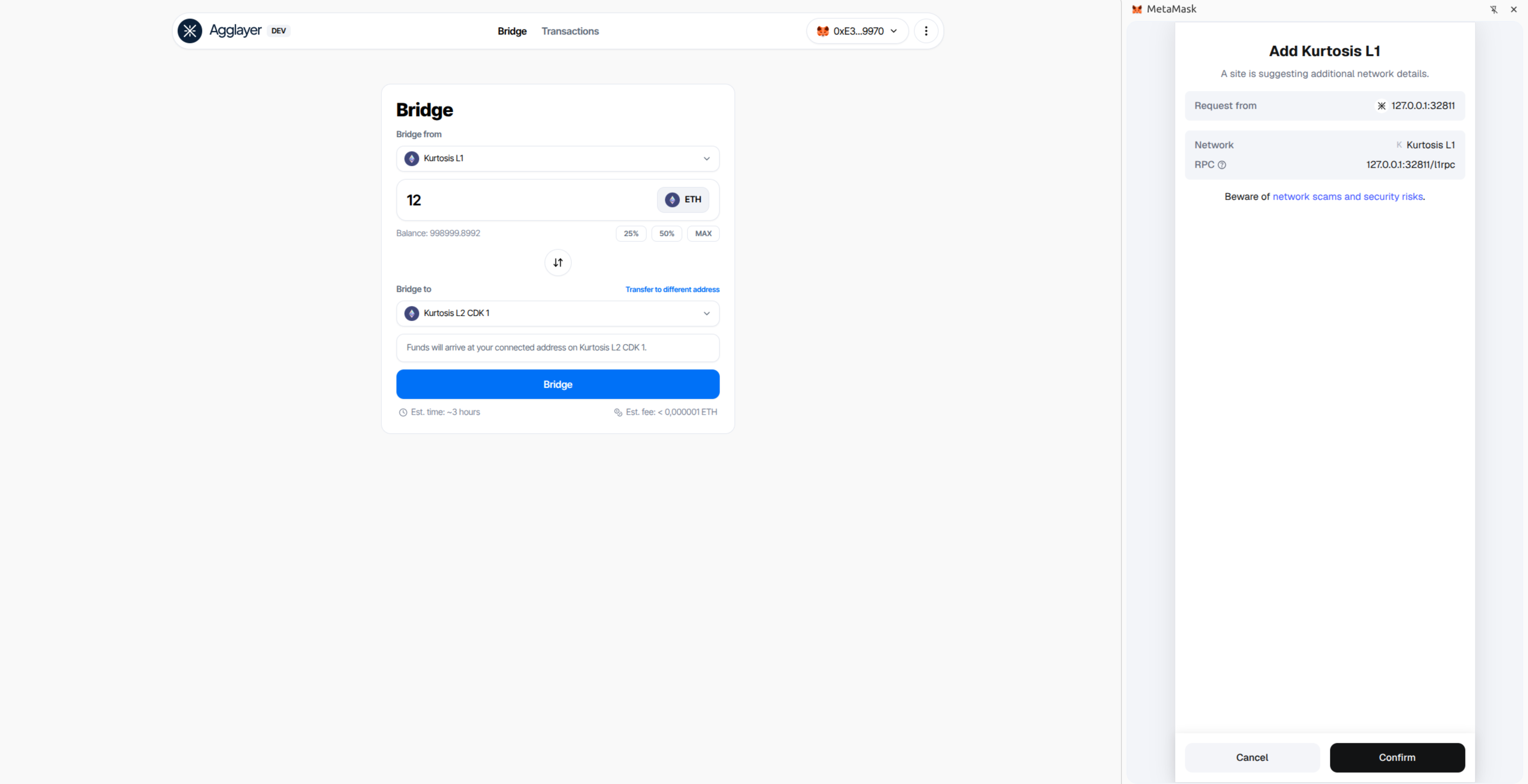
Step 2: Add network to MetaMask
- When prompted, review the "Kurtosis L1" network details in MetaMask
- Click "Confirm" to add the network
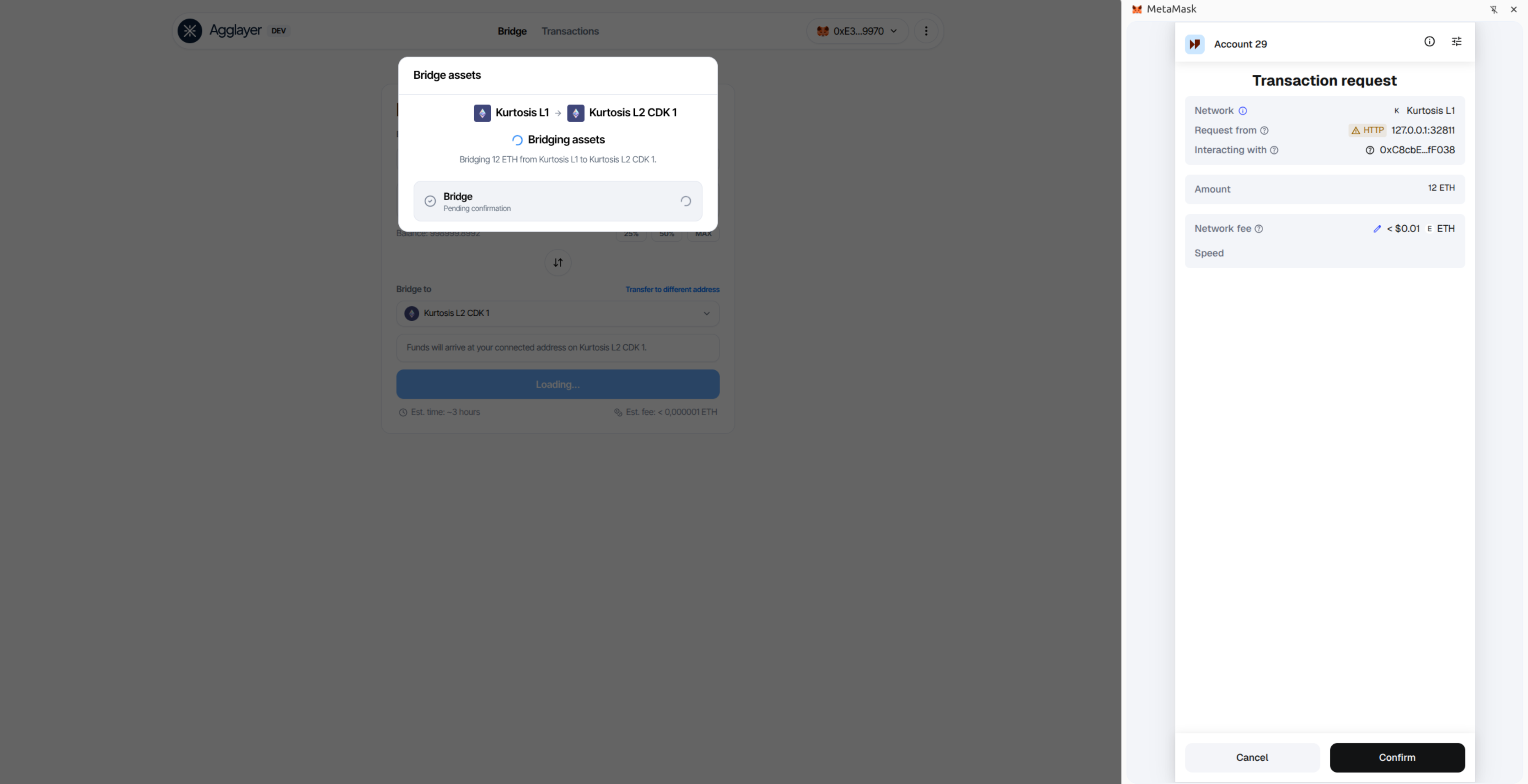
Step 3: Confirm the transaction
- Review the bridge transaction details in MetaMask
- Verify the amount and destination
- Click "Confirm" to execute the transaction
Step 4: Transaction processing
- Wait for the transaction confirmation
- If the transaction fails, retry the operation
- For persistent failures, check the bridge-hub service logs for errors
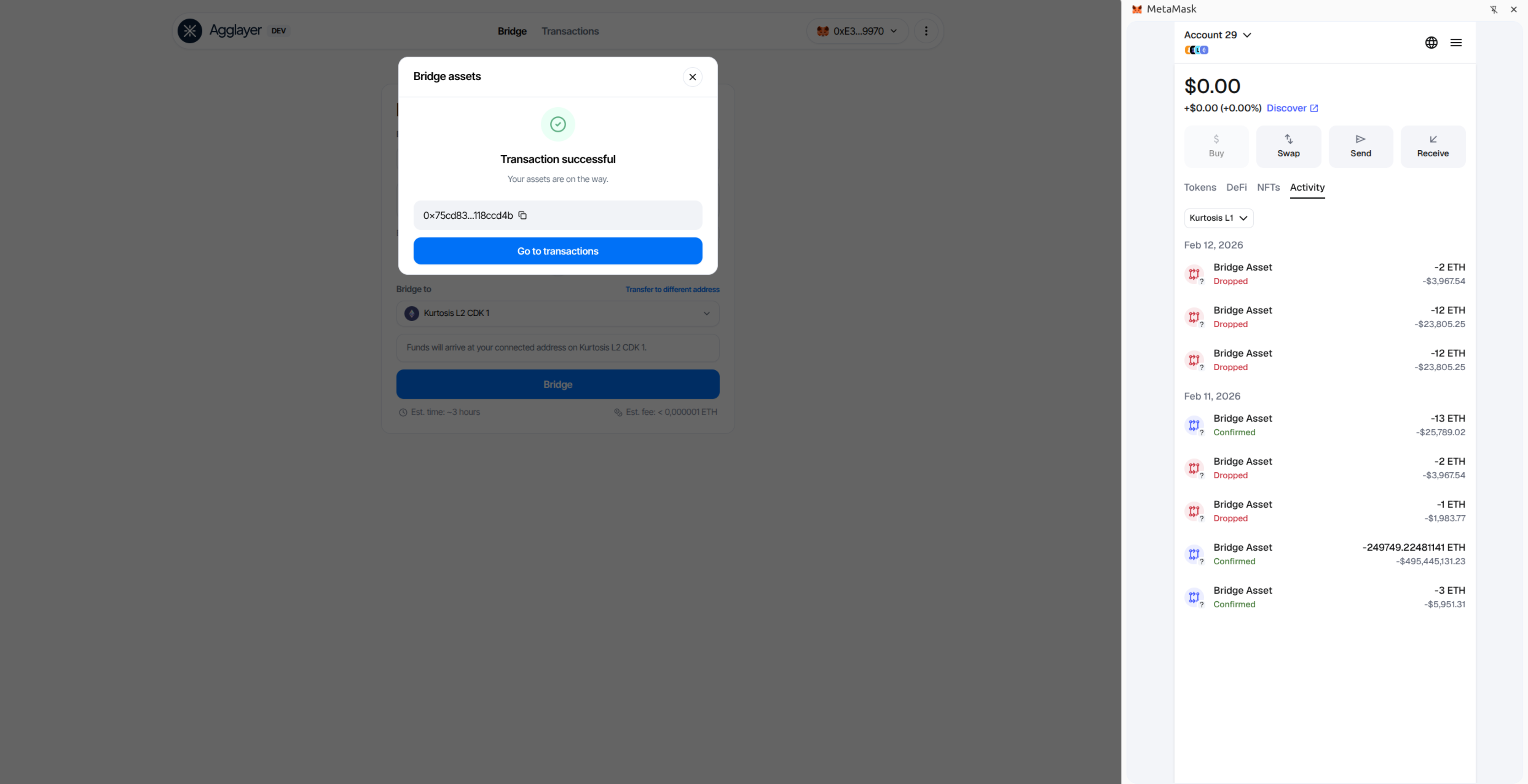
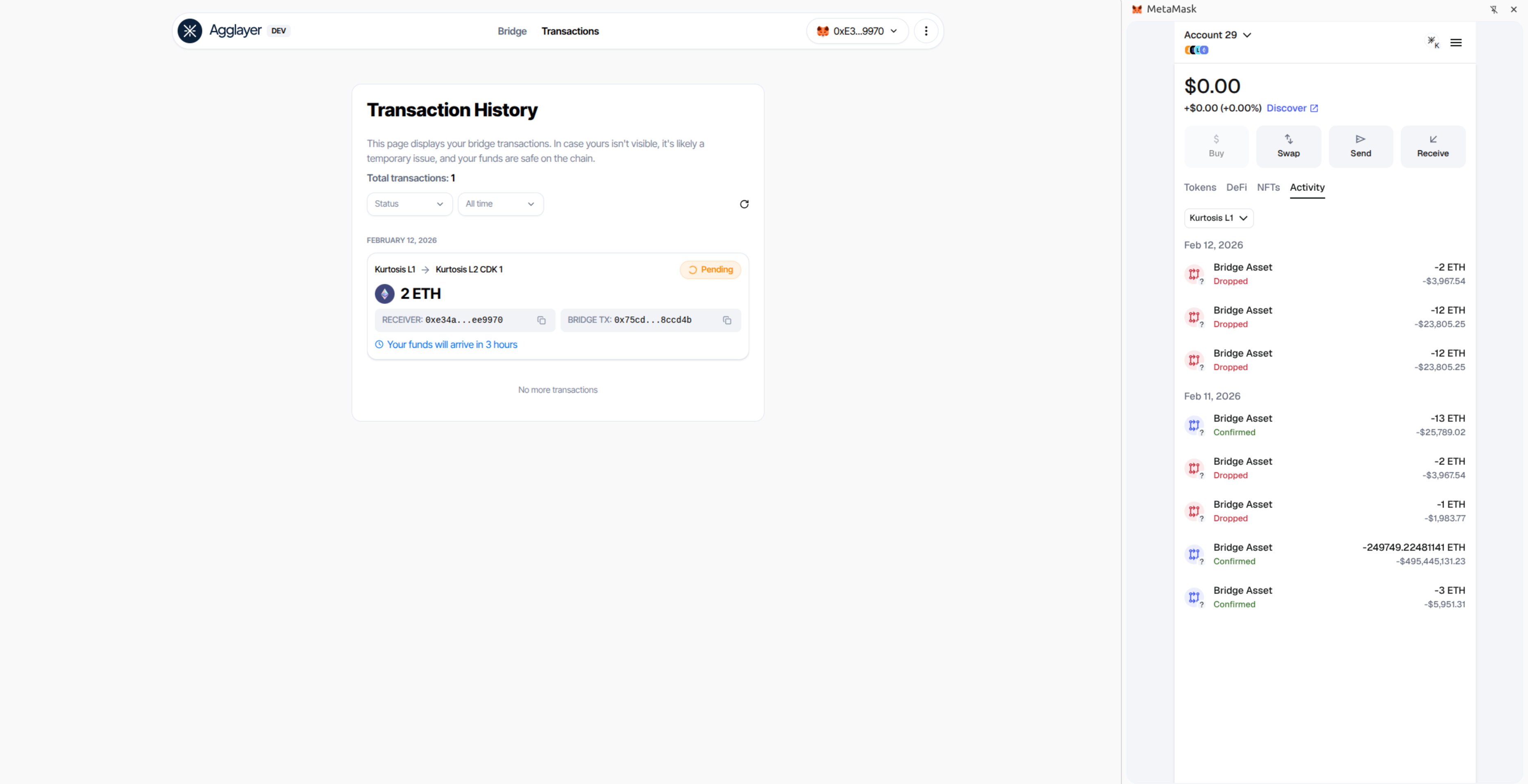
Step 5: Verify completion
- Monitor your transaction status in the interface
How to refresh the RPCs
If MetaMask can't fetch the chain ID, the RPC URL is likely outdated.
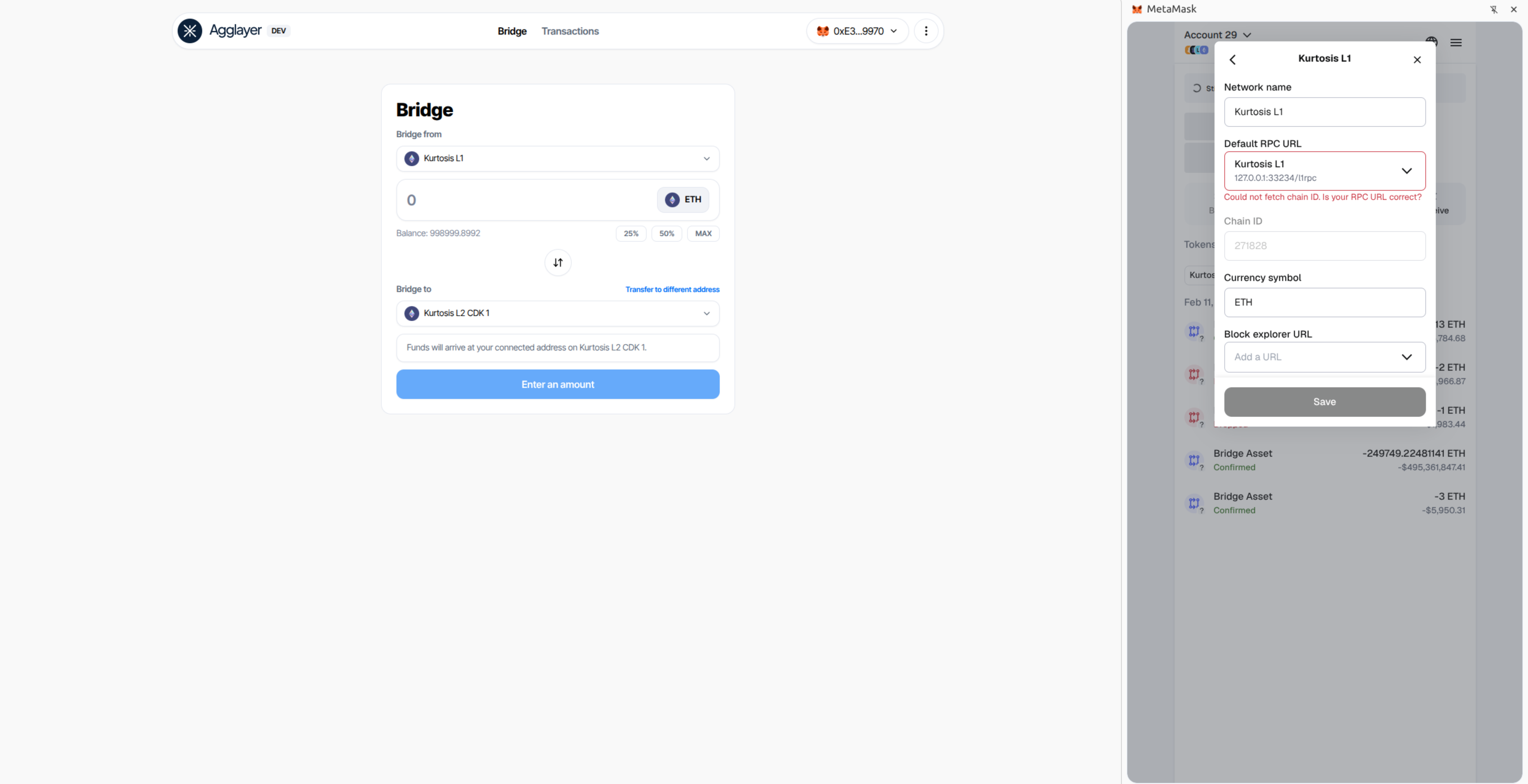
Delete the outdated RPC URLs.
- Open MetaMask settings
- Navigate to Networks
- Delete the outdated "Kurtosis L1" and "Kurtosis L2" networks